Blog ·
How to verify your Google Business Profile: plan the video first.
You made the Google Business Profile. It still says Get verified. Until it is verified, you cannot edit it or deal with customers through it, and it is not really yours. For a lot of service businesses, the only option on the screen is now a video. It is not hard. It is easy to get wrong if you press record before you know what to show.
Here is what Google asks for, in plain terms, and the shot list we would use for a plumber, a cleaner, or a roofer working out of the house.
You do not get to pick the method
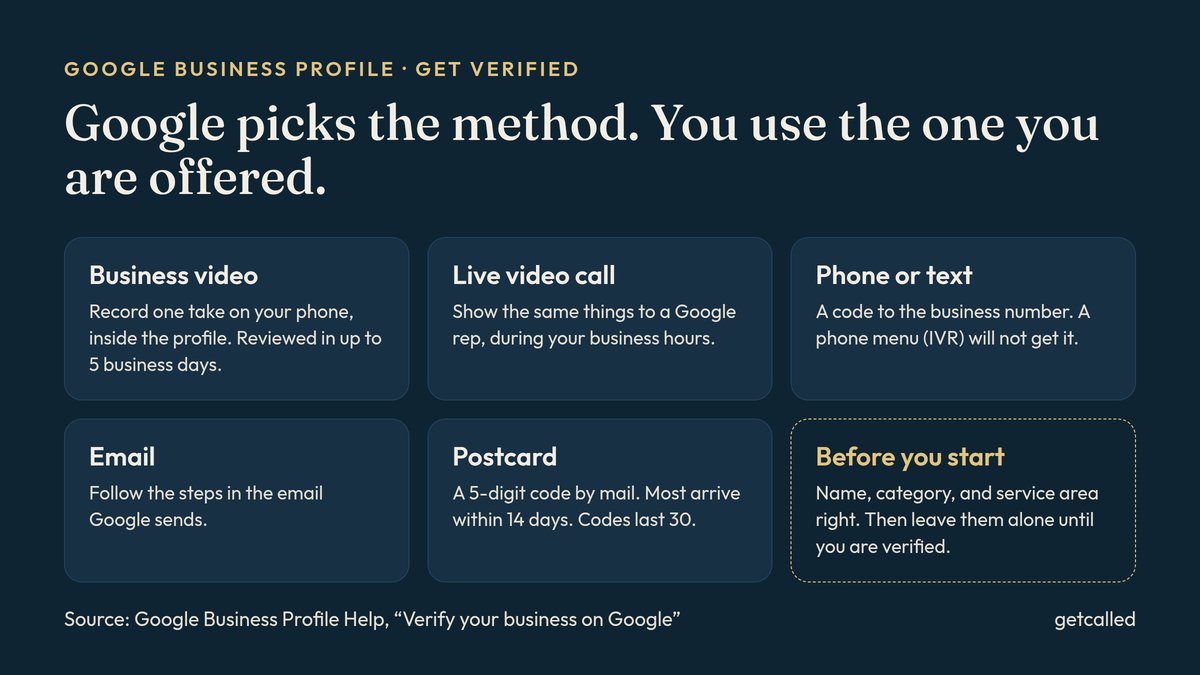
Google’s help page on verification is blunt about it: the methods are chosen automatically and cannot be changed. What you are offered depends on your business type, your public info, your region, and your hours. Some profiles need more than one method.
The options you might see:
- Business video. You record one take on your phone, inside the profile. Google recommends this one if you are eligible.
- Live video call. You show the same things to a Google support person, during your business hours.
- Phone or text. A code goes to the business number. Google says a phone menu (an IVR system) will not get the code, so a person or a cell has to answer.
- Email. You follow the steps in the email.
- Postcard. A code comes in the mail. Not available for every business.
Use what is on your screen. Searching for a trick to unlock a different method mostly wastes a week.
Get the profile right before you start
Verification checks that the profile matches a real business. So fix the profile first, then verify.
- The name is the name on the truck. Not “Best Plumber Mississauga” if the invoice says Singh Plumbing. In a video, the name you show has to match the name on the profile. More on that in the Google listing.
- The narrow category. Plumber, not contractor.
- No address if customers do not come to you. Google’s own video page says that if you do not serve customers at your business location, do not add your business address. Set the service area instead. Work from home? Same rule.
- A phone you can answer. If you get the phone or text option, the code has to reach a person.
Then stop editing. Google says that if it asks you to re-verify, it is usually because business details were recently updated. If you are waiting on a postcard, changing the name, address, or category makes the code useless.
The video: one take, at least 30 seconds
Google’s video verification page sets the rules. The video has to be:
- Live. Recorded and uploaded from your phone, through your Business Profile. Pre-recorded clips are not allowed, and you cannot record offline and upload later.
- One piece. Unedited, complete, no breaks.
- At least 30 seconds.
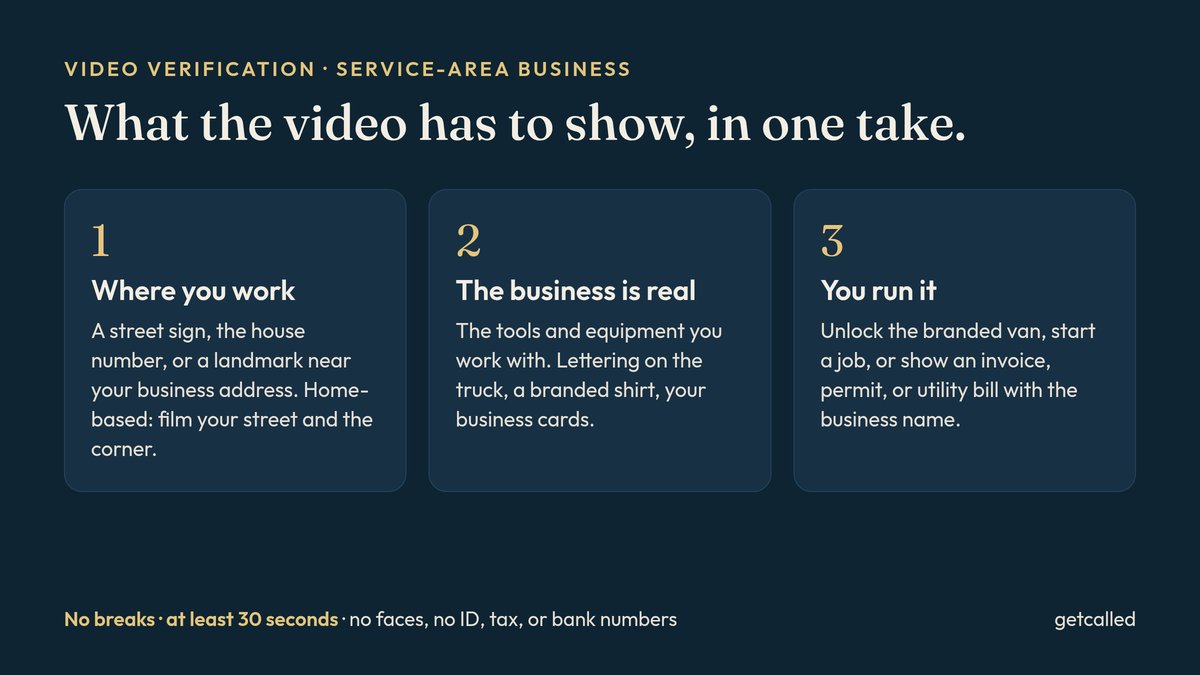
Keep out of frame: bank, tax, or ID numbers, private info about you or anyone else, and other people’s faces. So if you film an invoice, hold it so your GST/HST number and the customer’s address are not readable.
A shot list for a service-area business
A locksmith or a plumber is what Google calls a service-area business: you go to the customer. For that kind of business the video has to show three things. Walk it once without recording, then record.
- Where you work. Street signs, nearby landmarks, or other markers at your business address. Google says not to film empty land with nothing to recognize. If you run the business from home, Google says you can film landmarks and signs in your immediate neighbourhood.
- That the business is real. The tools, equipment, or products you work with. Your workspace, business cards, or a branded shirt.
- That you run it. Do something only the owner can do: unlock the van with your business name on it, or start a job with your own gear. Or show a business document with the name on the profile, like a business permit, an invoice, or a utility bill.
You need at least 30 seconds. A minute or so is usually enough to show all three without rushing. Walking out the front door, past the street sign, to the lettered truck, and opening it is a whole video for a lot of trades.
Have a shop? Show the sign and the back room
For a storefront, or a hybrid that serves people on site and on the road, the list is close but stricter about the sign. Google wants the location (street signs, building numbers, nearby businesses), the business name on a permanent fixture like a sign, wall, or window, and proof of management, such as opening the cash register, the storage room, or the point-of-sale system. No permanent sign? Google says to list the business as a service-area business instead.
How to record and upload it
These are Google’s steps. Labels can shift a little between the Google Maps app and Search.
- On your phone, go to your Business Profile.
- Tap Get verified. You may be asked for a phone number first.
- Tap Business video, then Next.
- Read the requirements. Allow camera, microphone, and location if asked.
- Tap Next, then Start recording. Record. Stop.
- Watch it back. Tap Try again if something is missing.
- Tap Upload video.
Then wait, up to five business days
Google says reviews take up to five business days, and on rare occasions longer. You get an email when it is verified.
If the profile shows Review issues, the video was not accepted. Tap it and read the reasons. Google gives examples like the business name not visible on the storefront, no nearby area shown, or missing proof that you are allowed to run the business. Record a new video that has everything from the first one, plus what was missing.
If Get verified comes back on a profile that was verified, Google could not fully confirm it. Try again with whatever methods it offers.
If you got a postcard
Check the mailing address, request the code, and then leave the profile alone. Google says most codes arrive within 14 days and expire after 30. Do not edit the name, address, or category while you wait, and do not request a second code, because that cancels the one already in the mail. When it comes, enter the 5-digit code on the profile. Nobody from Google will ask you for it, so do not read it out to a caller.
What this will not do
Verified is the starting line. It does not move you up the map. What does is in what to fix first: the listing, a page with a phone number, and a steady trickle of reviews.
Once it is verified, keep ownership in your name and add anyone who helps you as a manager. Google says third parties can be added after verification. In Local Presence, the listing stays in your name and we start once we can log in to it. Then we fix the category, services, service area, hours, and photos, add local pages, and count the calls. It is $1,400 a month for six months, or $1,200 a month for twelve, with a $150 setup. Prices in Canadian dollars, before HST. Stuck on verification, or not sure what Google wants from your video? Tell us where you are or write to hello@getcalled.ca.
Questions
Google says reviews take up to 5 business days after you finish the steps, and on rare occasions longer. A postcard adds the mailing time: Google says most codes arrive within 14 days, and they expire after 30.
No. Google picks the methods based on your business type, public info, region, and hours, and says they cannot be changed. Some profiles need more than one method. If video is offered, Google recommends it.
Set it up as a service-area business with no address shown. In the video, film street signs or landmarks near your business address, the tools or branded vehicle you work with, and something only the owner can do, like unlocking the van or showing an invoice or utility bill in the business name.
Google lists examples like the business name not being visible, no nearby area shown, or missing proof that you run the business. Tap Review issues, read the reasons, and record a new video that includes everything from the first one plus what was missing.
The owner should hold the profile and do the verification, because the video has to be filmed at your business and show that you run it. Google says you can add a third party as a manager after verification.